Tech Returners
Bootstrap

Introduction to Web Frameworks
- A web application framework is a type of software framework designed to support development of
dynamic websites, web applications, web services and of web resources.
- Frameworks are a special case of software libraries in that they are reusable abstractions of
code wrapped in a well-defined Application Program Interface (API)
- By using frameworks, we benefit from peer-reviewed, tested and pre- written functionalities that
save us time and allow us to share and contribute to the wider developer community.
What's hard about CSS?
- Different browsers will render CSS with subtle differences.
- Just because your site looks good in Chrome, doesn’t mean it will look good in Internet Explorer.
Making your site look good (or even presentable) in multiple browsers takes time, effort
and experience.
- The mobile web has exploded and you have another (far more important) concern: how will your
site look when viewed on a mobile?
- Making web pages that look good when viewed at multiple different sizes is a whole new level
of complexity.
-
https://dequeuniversity.com/library/responsive/1-non-responsive
-
https://www.apple.com/uk/
Twitter Bootstrap
- Twitter Bootstrap is a Web Application Framework; set of CSS (& Javascript) files, released
by the makers of Twitter, and maintained by some of its developers.
- Bootstrap provides a set of ready-made CSS files that provide pre-built functions for common
web development requirements, and pre-built solutions to common presentation requirements
in a cross-browser and responsive way.
-
https://v4-alpha.getbootstrap.com/examples/
To make use of Twitter Bootstrap, you need to do two things
- Link to the Twitter Bootstrap stylesheet in the
head
of your html page.
- Attach the relevant Twitter Bootstrap class to your
html
element.
https://codepen.io/dianaklee/pen/yYVbzv?editors=1000
https://codepen.io/dianaklee/pen/yYVbzv?editors=1000
Bootstrap vs no Bootstrap - Task 1
- We will be creating this :
http://code61.github.io/bootstrap_exercise/
- Fork the bootstrap exercise repository
https://github.com/code61/bootstrap_exercise
Click on Fork and select your account (if requested)
- Clone the repository from your GitHub account:
- Step 1 - Click the Clone or Download button and copy the URL to clipboard by selecting
the clipboard button.
- Step 2 - Open your command line and cd into the folder where you would like to make a
copy of this repository and then run the below :
git clone {paste the url you copied here}
See example below
- Open up the index.html file in Chrome and examine what this looks like.
- Add the below Bootstrap code into the head section of the index.html
https://getbootstrap.com/docs/4.0/getting-started/introduction/
The code actually reads like this:
<link rel="stylesheet" href="https://maxcdn.bootstrapcdn.com/bootstrap/4.0.0/css/bootstrap.min.css"
                                integrity="sha384-Gn5384xqQ1aoWXA+058RXPxPg6fy4IWvTNh0E263XmFcJlSAwiGgFAW/dAiS6JXm" crossorigin="anonymous">
- Refresh Chrome to view the differences compared to what it looked like before you added Bootstrap
into your code.
http://code61.github.io/bootstrap_exercise/
- Fork the bootstrap exercise repository
https://github.com/code61/bootstrap_exercise
Click on Fork and select your account (if requested)
- Clone the repository from your GitHub account:
- Step 1 - Click the Clone or Download button and copy the URL to clipboard by selecting
the clipboard button.
- Step 2 - Open your command line and cd into the folder where you would like to make a
copy of this repository and then run the below :
git clone {paste the url you copied here}
See example below
- Open up the index.html file in Chrome and examine what this looks like.
- Add the below Bootstrap code into the head section of the index.html
https://getbootstrap.com/docs/4.0/getting-started/introduction/
The code actually reads like this:
<link rel="stylesheet" href="https://maxcdn.bootstrapcdn.com/bootstrap/4.0.0/css/bootstrap.min.css" integrity="sha384-Gn5384xqQ1aoWXA+058RXPxPg6fy4IWvTNh0E263XmFcJlSAwiGgFAW/dAiS6JXm" crossorigin="anonymous"> - Refresh Chrome to view the differences compared to what it looked like before you added Bootstrap into your code.
Responsive Design
- Responsive design means designing your sites so that they look good
on all screen sizes.
- Bootstrap promotes a
‘mobile first’
philosophy, encouraging you to design your site so that it looks good at all sizes from the
very beginning of it’s development. It provides a lot of useful CSS that helps you to do
this.
Grid System - Containers, Rows and Cols
- Bootstrap includes a responsive, mobile first fluid
grid system
that lets you split the screen up into 12 columns and lets you customise the size of your
HTML element as a fraction of 12 depending on the
view point.
- It uses a series of containers, rows and columns to layout and align content.
Grid System - Containers
- Bootstrap makes it easy to center content on your page and provide sensible page margins. To
do this we make use of the
container
class.
Grid System - Columns
- Bootstrap works on a grid layout, with 12 columns that make up the page.
- If you do not want to use all 12 columns individually, you can group the columns together to
create wider columns
Grid System - Rows and columns
- We can control the columns we want to display by placing them in rows using the row class. The
number after the col-sm- determines how many of the 12 grid columns that page column takes
up.
- The sm bit determines the width at which the columns will collapse on top of each other, and
in this case, it represents a “small” viewport - a phone.
-
xs (for phones - screens less than 769px wide)
-
sm (for tablets - screens equal to or greater than 769px wide)
-
md (for small laptops - screens equal to or greater than 992px wide)
-
lg (for laptops and desktops - screens equal to or greater than 1200px wide)
The classes above can be combined to create more dynamic and flexible layouts.
- xs (for phones - screens less than 769px wide)
- sm (for tablets - screens equal to or greater than 769px wide)
- md (for small laptops - screens equal to or greater than 992px wide)
- lg (for laptops and desktops - screens equal to or greater than 1200px wide)
The classes above can be combined to create more dynamic and flexible layouts.
Task 2
- Add a
div class='container' around the page content
- Create a row at the top of the page with 2 columns, with the left twice as wide as the right.
Put the
h1 in the left column and the
image src='images/sadwiches.png' on the right.
- Create a row with three equal columns to hold each of 'The Buzz' divs
div class='container' around the page contenth1 in the left column and the
image src='images/sadwiches.png' on the right.Typography
Skim through the
typography section
of the bootstrap docs.
Task:
- Change the quotes in 'The Buzz' to use
blockquotes.
(Don't worry about the vertical grey lines - we'll remove those later.)
- Change the paragraphs in 'Our mission' to be
lead body copy.
(Don't worry about the vertical grey lines - we'll remove those later.)
Buttons
Check out the
buttons section
(CSS > Buttons).
Task:
- Change the 'Send' button to a success button:
<button class='btn btn-success' >Send</button>
You might also need
btn-sm in the Recent Activity section.
- Make the social links at the bottom into large buttons (we'll colour them later):
<button class='btn btn-lg' >Send</button>
<button class='btn btn-success' >Send</button>
You might also need btn-sm in the Recent Activity section.
<button class='btn btn-lg' >Send</button>
Images
Have a look at the
images section
of the Bootstrap docs (CSS > Images).
Task:
- Make the images in 'The Buzz' round, by adding the
img-circle class.
- You can center the image by adding the alignment class
text-center
- Change the main sandwich image into an
img-responsive , as described in the responsive images section.
Try resizing your browser and see how it changes size.
Try resizing your browser and see how it changes size.
Modifying Bootstrap
Warning: Bootstrap has been designed and heavily tested for good cross-browser compatibility. Unless you know what you're doing or have a lot of time, it's probably best to stick with their layout and tweak small things e.g. fonts and colours. Just because it looks great in your browser doesn't mean it will look great in everyone's!
If you’re going to modify Bootstrap
don’t touch the Bootstrap files.
Instead create a new css file of your own to overwrite anything you don’t want.
This means when a new version of Bootstrap comes out you can upgrade by dragging the new version
over the top of the old, without losing any modifications.
- Create a file called main.css and write the following CSS:
#social-buttons button {

color : white;

}


#btn-twitter button {

 background-color : #00acee;

 bordercolor : #009ad5;

}


.btn-facebook button {

 background-color : #4868ac;

 bordercolor : #314776;

}


.btn-pinterest button {

 background-color : #b62f26;

 bordercolor : #b62f26;

}
- Link this file into the head of index.html underneath your link to Bootstrap.
- What happens? Notice how in the first rule we've selected only those buttons that exist inside
an element with
id=social-buttons.
#social-buttons button {
color : white;
}
#btn-twitter button {
background-color : #00acee;
bordercolor : #009ad5;
}
.btn-facebook button {
background-color : #4868ac;
bordercolor : #314776;
}
.btn-pinterest button {
background-color : #b62f26;
bordercolor : #b62f26;
}
Changing the background
Task:
- Change the background of the
jumbotron to be the image fruit-and-veg.jpg by adding the css
.jumbotron {

    min-height: 600px;

    background-image: url('images/fruit-and-veg.jpg');

    background-size: cover;

    background-attachment: fixed;
- This doesn't quite look right.
The problem is the
jumbotron is inside the
div class='container'.
You can fix this by moving the
container inside
jumbotron
<div class="jumbotron">

    <div class="container">


    </div">

</div>


Similarly you will now need to create new containers inside the div
                                    id='buzz' and div id='mission'
- Change the background color of the
mission section to
rgba(32, 35, 41, 0.9)
and the font colour to
#ddd
.jumbotron {
min-height: 600px;
background-image: url('images/fruit-and-veg.jpg');
background-size: cover;
background-attachment: fixed;
The problem is the jumbotron is inside the div class='container'.
You can fix this by moving the container inside jumbotron
<div class="jumbotron">
<div class="container">
</div">
</div>
Similarly you will now need to create new containers inside the div
id='buzz' and div id='mission'
Navbar
Browse through the
navbar section
of the Bootstrap docs.
Task:
- Look at the html for the
basic starter
template.
- Use it to add a navbar to your site.
- Make it a
navbar-fixed-top. You will need to add the below to main.css.
body { padding-top: 70px;}
- Add a search box to the navbar. Use the
pull-right class to put it on the right hand side.
body { padding-top: 70px;}
Other things
There are various other changes you will need to make your site look like the example. Try and figure
out what these are by examining the html in the Developer tools.
Task:
- Make any other changes necessary to make your site look like the Example
- If you get stuck check by looking at the gh-pages branch on the github repository.
Additional materials
Bootstrap Components
Wireframing
- Instead of jumping right in and figuring things out as you go, why not turn to the trusty pencil and paper or use a whiteboard to plan an overall site layout offscreen first.
- Use this approach to get an idea of where you want specific elements to go, much like how an architect uses floor plans to plot out where windows, doors, and rooms should go.
- https://balsamiq.com/
Host your website on Github Pages
Repository Settings
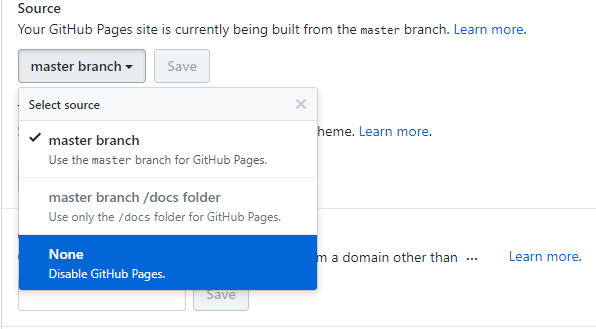
Click on the settings tab and then scroll down to the GitHub Pages section
Then select the master branch source and click on the save button